
Remote Desktop Container (Ubuntu + XFCE + kubectl + Helm)

 jdtate101
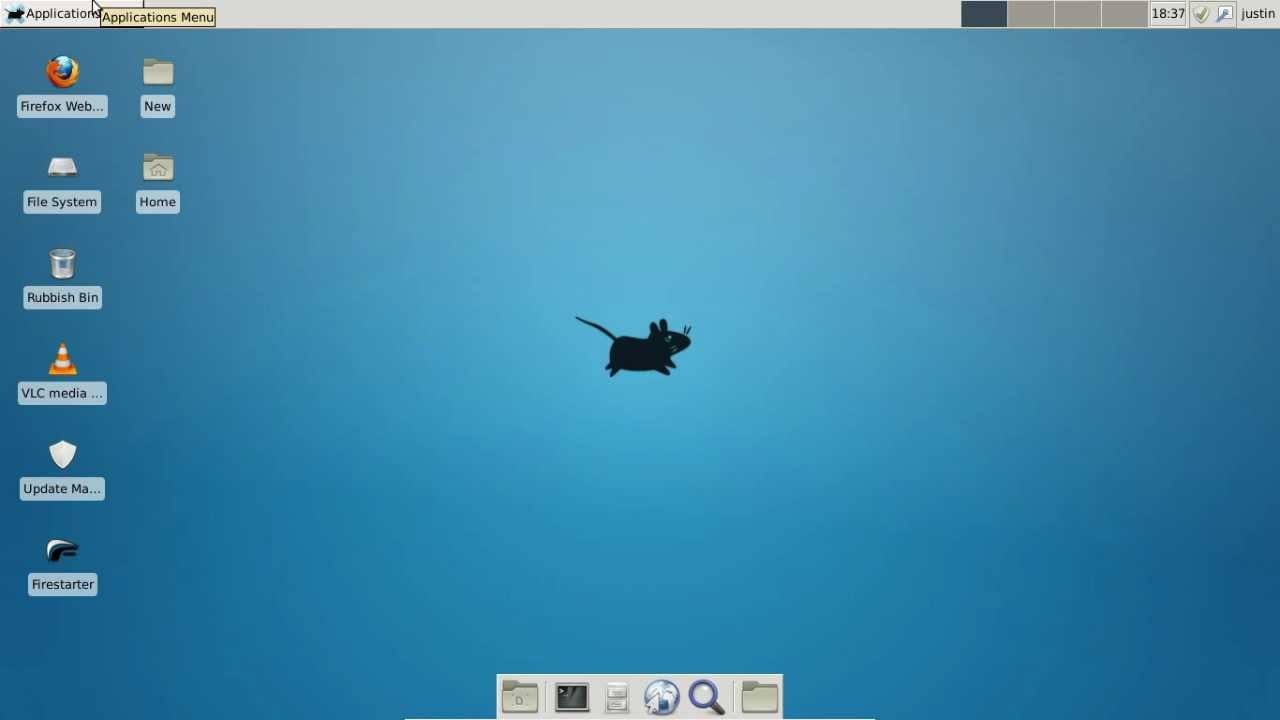
A containerized remote desktop: Ubuntu 24.04, XFCE window manager, accessed
via a browser (noVNC). kubectl and helm are preinstalled. $HOME is a
named volume, so anything in the home directory (including~/.kube/config, shell history, downloaded files, browser profile)
survives container restarts and rebuilds.
This setup assumes access is gated by an authenticating reverse proxy (e.g.
Authentik) placed in front of the noVNC port - see VNC authentication
below before exposing this beyond localhost.
Build & run
docker compose up -d --build
Open http://localhost:6080/ (put this behind your reverse proxy/Authentik
for anything beyond localhost) and click Connect.
VNC authentication
VNC_PASSWORD in docker-compose.yml controls this:
environment:
  VNC_PASSWORD: ""                    # disabled - relying on Authentik in front
  # VNC_PASSWORD: "some-strong-password"   # or: require this password at the VNC layer too
The password (or lack of one) is applied on every container start, so
changing the env var and recreating the container is enough - no rebuild
needed:
docker compose up -d --force-recreate
Why port 5901 isn't published: Authentik (or any HTTP reverse proxy)
fronts noVNC's web UI on 6080 - it's a normal HTTP/WebSocket connection, so
the proxy can enforce auth on it. Raw VNC on 5901 is a plain TCP protocol,
not HTTP, so a reverse proxy generally can't front it the same way. WithVNC_PASSWORD empty, leaving 5901 published would mean full, unauthenticated
desktop access to anyone who can reach that port - bypassing Authentik
entirely. That's why the port mapping was removed from docker-compose.yml;
noVNC/6080 (behind Authentik) is the only way in. If you ever need raw VNC
access again (e.g. for a native client), re-add the port mapping and set a
real VNC_PASSWORD at the same time.
Persistent storage
The compose file mounts a named volume, desktop-home, at /home/desktop
(the container's $HOME). This means:
kubectl/helmconfig (~/.kube,~/.config/helm) persists- Desktop settings, files you save, browser profile, etc. persist
docker compose down && docker compose up -dkeeps everythingdocker volume rm remote-desktop_desktop-homewipes it if you want a clean slate
To point kubectl/helm at a cluster, just drop a kubeconfig at~/.kube/config inside the container (e.g. via the desktop's file manager,
or docker cp your-kubeconfig remote-desktop:/home/desktop/.kube/config).
SSH access
ssh desktop@<host> -p 2222
sshd listens on the standard port 22 inside the container; docker-compose.yml
publishes that as host port 2222 ("2222:22").
Auth is via SSH_PASSWORD in docker-compose.yml - it sets the desktop
account's Linux password on every container start:
environment:
  SSH_PASSWORD: "some-strong-password"   # change this from the default
Leave it empty to lock the account (no SSH login possible). desktop has
passwordless sudo, so once you're in you can run sudo apt update,sudo apt upgrade, etc. manually if you want to, on top of the automatic
update described below.
Host keys are generated once and stored in the persistent volume
(~/.ssh/host_keys), so they stay stable across image rebuilds - you won't
get "remote host identification has changed" warnings each time you rebuild.
This port is not behind Authentik. SSH is a raw TCP protocol like VNC,
not HTTP, so the same limitation from the VNC section applies: an HTTP
reverse proxy can't front it. Port 2222 is reachable by anyone on the local
network with the password. That's an acceptable trade-off for local-network
convenience access, but use a real password (not the changeme default) and
don't publish this port beyond your local network without something in
front of it (e.g. a firewall rule, or tunnel over Tailscale/WireGuard
instead of publishing it directly).
Automatic package updates
The entrypoint runs apt update && apt upgrade -y unattended on every
container start, before anything else comes up. This is what keeps packages
current given the volume only covers /home/desktop - apt-installed
packages live in the container's own writable layer, not the volume, so
they'd otherwise be wiped out on the next docker compose up -d --force-recreate or rebuild. Re-running the upgrade on every start solves
that, at the cost of:
- Startup time: every start now takes longer (however long apt takes to
check and pull updates). - A network dependency at boot: if the container can't reach its apt
mirror at startup, the upgrade step logs a warning and the container
still starts normally with whatever packages it already has - it won't
crash-loop over this.
NFS share
Rather than have the container mount NFS itself, /nfs on the jumpbox
(already an NFS mount there) is bind-mounted straight into the container at
the same path:
volumes:
  - /nfs:/nfs
This is simpler and more reliable than a container-side NFS client -
whatever's mounted at /nfs on the jumpbox just appears at /nfs inside
the container, using the jumpbox's own already-working NFS mount rather
than standing up a second one. No extra capabilities or AppArmor changes
needed for this (unlike a mount performed from inside the container).
Clipboard (copy/paste)
vncconfig and autocutsel run automatically inside the XFCE session to
sync the X clipboard with the VNC clipboard. Behavior differs by how you
connect:
- Native VNC client (TigerVNC viewer, RealVNC, Remmina, etc.), if you
re-add the 5901 port mapping: copy/paste is bidirectional and automatic -
copy on your local machine, paste inside the remote desktop, and vice versa. - Browser via noVNC on
localhost:6080: browsers sandbox clipboard
access, so noVNC uses its own clipboard panel instead of the OS clipboard
directly. Open the sidebar (the arrow tab on the left edge of the noVNC
page) and use the Clipboard section: paste text there to send it into
the remote desktop, and text copied inside the remote desktop appears
there for you to copy out. It's a manual step, not a limitation of this
image - it's how noVNC works in any browser.
Auto-resize to browser window
Connecting via the browser (noVNC, port 6080) now defaults to "remote
resizing": the XFCE desktop's actual resolution changes to match your
browser window/tab, and resizes live as you resize the window. This works
because TigerVNC's Xtigervnc supports on-the-fly resolution changes via
RandR, and the custom noVNC landing page (index.html) requests that mode
by default.
- If you ever want the old fixed-resolution behavior instead, use the gear
icon in the noVNC sidebar and change Scaling Mode to None or Local
Scaling, or append?resize=scale/?resize=offto the URL yourself. - A native VNC client, if you re-add the 5901 port mapping, doesn't get
this automatically - most VNC viewers have their own "request remote
resize" option in their connection settings if you want the same
behavior there.
Without docker-compose
docker build -t remote-desktop:latest .

docker run -d --name remote-desktop \
  -e VNC_PASSWORD="" \
  -e SSH_PASSWORD="some-strong-password" \
  -p 6080:6080 -p 2222:22 \
  -v desktop-home:/home/desktop \
  -v /nfs:/nfs \
  --shm-size=1g \
  --cap-add SYS_ADMIN \
  --security-opt seccomp=unconfined \
  remote-desktop:latest
Notes / things you may want to change
- Resolution: set
RESOLUTION(e.g.2560x1440) as an env var. - Security: VNC auth is disabled by default (see VNC authentication
above) on the assumption Authentik or another authenticating reverse
proxy sits in front of port 6080. If you're not putting a proxy in front
of this, set a realVNC_PASSWORDinstead - and note noVNC's traffic
itself is plain WebSocket, not TLS, so terminate TLS at the proxy either
way rather than exposing 6080 directly. - Chrome sandbox: the container runs with
cap_add: SYS_ADMINandsecurity_opt: seccomp:unconfinedso Chrome's own internal sandbox
(nested namespaces) can function - without these, Chrome core-dumps on
launch. This trades off some of the container's isolation from the host -
worth knowing if this container ever runs somewhere less trusted than
your own homelab. - kubectl version: pinned to
stableat build time via theKUBECTL_VERSIONbuild arg; pass--build-arg KUBECTL_VERSION=v1.31.0to
pin a specific version. - Extra apps: add packages to the
apt-get installlist in the
Dockerfile (e.g.codefor VS Code,gimp, etc.) and rebuild. Includesscreenfetchandaptitudealongside the desktop/VNC/dev tooling.nfs-commonis also installed but currently unused now that/nfsis a
bind mount rather than a container-side NFS client - harmless to leave,
or drop it from the Dockerfile if you'd rather keep the image lean.