
Getting Omarchy Properly Working on ESXi + NoMachine: Black Screens, Stuck Resolution, and Headless Boot

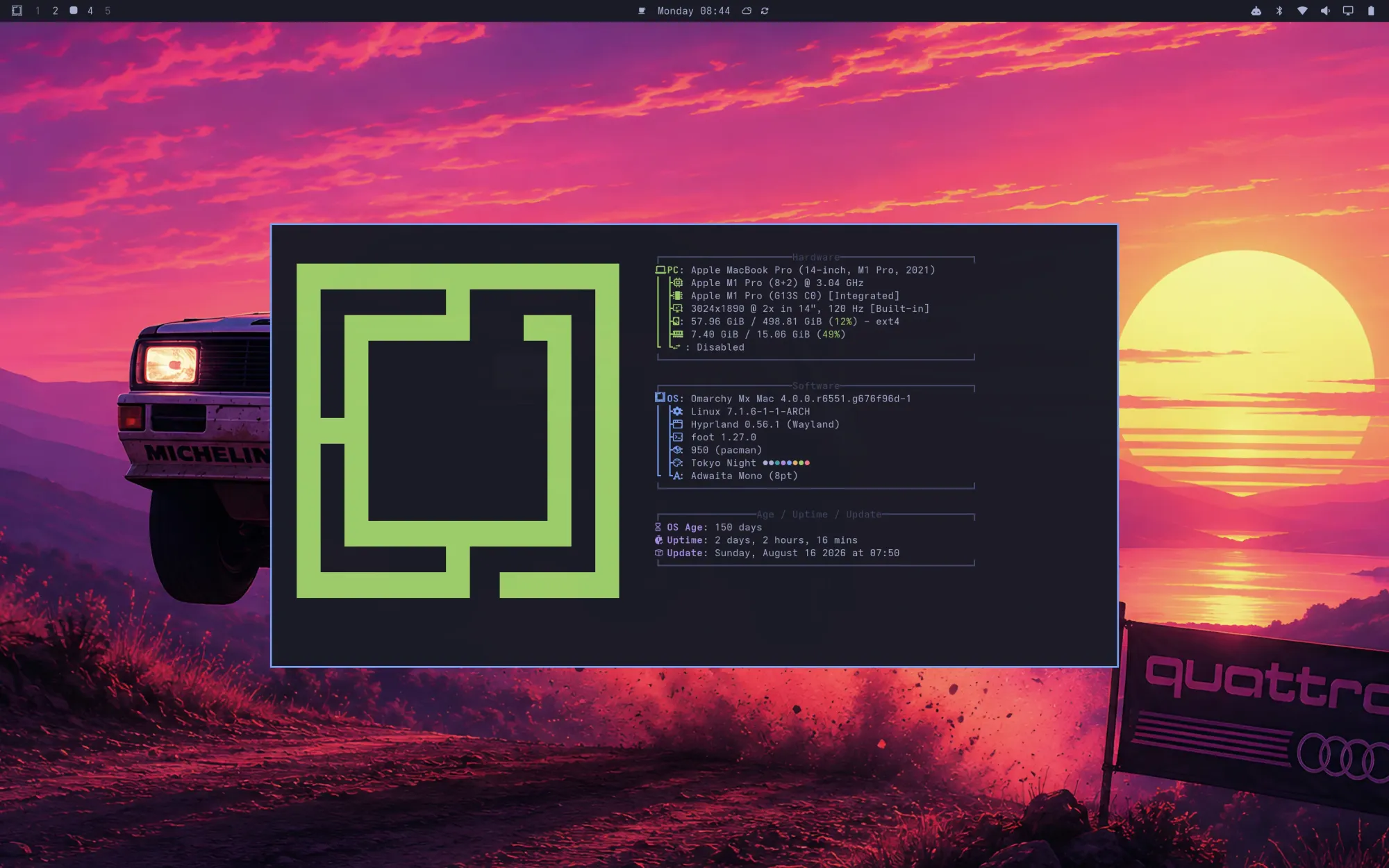
What is Omarchy, and why bother with a tiling window manager?
Omarchy is an opinionated, pre-configured setup of Arch Linux paired with Hyprland, a tiling Wayland compositor. Rather than handing you a bare Arch install and a blank slate, it ships with a full, curated desktop out of the box — window manager, terminal, editor, theming, and a set of developer tools — all wired together and ready to use within minutes of booting the installer. It's built and maintained by David Heinemeier Hansson (DHH, of Ruby on Rails and Basecamp/37signals fame), who describes the approach as "omakase" — you're trusting the chef's choices rather than assembling everything yourself. It's a sister project to his earlier Ubuntu-based Omakub, aimed at people willing to trade some of that initial hand-holding for a faster, more opinionated path into Arch and Hyprland.
The appeal of a tiling window manager in general is that it removes almost all manual window management. Instead of dragging, resizing, and overlapping windows with a mouse, the compositor automatically arranges open windows to fill the screen in a grid-like layout, and you move, resize, and switch between them entirely from the keyboard. For anyone who spends most of their day in a terminal, an editor, and a browser, that adds up: no more hunting for a window under a stack of others, no more manually snapping panes side by side — the layout is just always sane, and switching context is a keystroke rather than a mouse trip.
Omarchy's particular ethos leans on the idea that beauty and coherence drive motivation, and motivation drives productivity — hence the polish, the cohesive theming, and the curated app selection, rather than just a minimal/functional Arch+Hyprland base. It's unapologetically opinionated: DHH picks the defaults, and if you don't like a given choice, you're free to rip it out, but you don't have to make every decision yourself just to get a usable, good-looking, keyboard-first desktop running. That's also made it a bit of a lightning rod — DHH is a polarizing figure in tech circles, and some of the discussion around Omarchy is as much about him as about the distro itself — but on the technical merits, it's a genuinely fast way to get a modern, keyboard-driven Linux desktop up without weeks of manual dotfiles tuning.
Which brings us to running it somewhere slightly off the beaten path: as a VM under ESXi, remoted into over NoMachine, rather than on a laptop with a real GPU. That combination surfaces a handful of issues you won't hit on bare metal — which is what the rest of this post is about.
If you're running Omarchy inside an ESXi VM and driving it over NoMachine, you'll likely hit three walls, roughly in this order:
- Hyprland crashes on startup with nothing but a black screen — the compositor never actually renders.
- Once it is rendering, the display is stuck at a tiny resolution (1280x768) no matter what you put in your Hyprland monitor config.
- Every reboot stops at a LUKS decryption prompt before networking comes up — which means you have to console into the VM via vSphere just to unlock it before NoMachine can even connect.
Here's how I diagnosed and fixed all three, including the dead ends, because the dead ends are honestly the useful part if you're debugging this yourself.
Setup: Omarchy, Hyprland 0.56 (Lua config), no GPU passthrough (software rendering), VMware SVGA II adapter, NoMachine Personal Edition, Limine bootloader on a LUKS2 + btrfs root.
Part 0: Black screen on boot — Hyprland won't render at all
First problem, before anything else worked: booting the VM, the console (and NoMachine) showed nothing but black. The VM pinged and was clearly running, but no SSH, no desktop.
Getting a shell in the first place
With no SSH access yet, the only way in was the ESXi console — but Omarchy boots straight to the graphical target, and a crashing compositor there means no login prompt either. Forcing a text-mode boot got messy:
- Editing the Limine boot entry live (appending
systemd.unit=multi-user.targetto the kernel cmdline at the boot menu) triggered aPANIC: Blake2b hash must be 128 characters long. Omarchy's Limine entries hash-verify the kernel/initramfs paths, and editing the entry live over ESXi's HTML5/noVNC console is fragile — dropped or duplicated keystrokes can corrupt a long hex string without it being visibly wrong on screen.
The reliable fix: don't touch the Limine entry at all. Boot a rescue ISO, arch-chroot into the installed system, and run:
systemctl set-default multi-user.target
This persists a text-mode boot without going near Limine's hash-checked config, and reboots straight to a tty1 login.
Diagnosing the crash
With console access, launching Hyprland directly (rather than through however it's normally autostarted) surfaces the real error instead of a silent black screen:
ls -la /dev/dri          # confirm card0/renderD128 exist
Hyprland                  # launch directly and read the log
The crash log pointed straight at it:
GPU: VMware SVGA II Adapter [15ad:0405]
...
ERR: [EGL] Command eglInitialize errored out with EGL_NOT_INITIALIZED: DRI2: failed to create screen
vmwgfx correctly found and mode-set the display (Virtual-1), but the VM's video device was the basic SVGA II adapter with no 3D acceleration enabled — so there was nothing for EGL to initialize against, and Hyprland's renderer aborted on startup.
The fix: force software rendering
On plain ESXi (no vGPU/passthrough), the reliable fix is bypassing hardware rendering entirely and forcing Mesa's CPU software rasterizer:
LIBGL_ALWAYS_SOFTWARE=1 Hyprland
That got a working desktop immediately.
Making it permanent
Omarchy launches Hyprland via uwsm (Universal Wayland Session Manager), not directly — and uwsm's own env file is the right place for this, since it's exported before the Wayland session (and Hyprland's EGL init) starts. hyprland.conf's env = directive is parsed too late to affect this.
mkdir -p ~/.config/uwsm
echo 'export LIBGL_ALWAYS_SOFTWARE=1' >> ~/.config/uwsm/env
Then flip the boot target back and reboot:
sudo systemctl set-default graphical.target
sudo reboot
It should come up straight into a working desktop, no console gymnastics required — this is also what enabled everything in the next two sections, since none of that troubleshooting was possible without a rendering compositor in the first place.
Trade-off worth knowing: this is CPU rendering, so animations/blur will feel noticeably less snappy than real GPU acceleration. If your ESXi host can expose actual SVGA3D to the VM (some can, depending on host config — worth checking Edit Settings → Video Card for a 3D support toggle), that's the better long-term fix; software rendering is the reliable fallback when it can't.
Part 1: Stuck at 1280x768
The wrong assumption
My ~/.config/hypr/monitors.lua had:
hl.monitor({ output = "DP-2", mode = "2560x1600@60", position = "0x0", scale = 1 })
That did nothing, because the output wasn't called DP-2. Inside the VM, hyprctl monitors all showed it as Virtual-1 — a generic name, not a real connector. Different hypervisors and remote-desktop tools name this differently, so always check first rather than assuming your usual DP-*/HDMI-* name.
Testing live changes (Hyprland 0.55+ uses Lua config)
If you're on the newer Lua-based Hyprland config, hyprctl keyword is gone:
$ hyprctl keyword monitor "Virtual-1,2560x1600@60,0x0,1"
keyword can't work with non-legacy parsers. Use eval.
Use eval with the same hl.monitor() call instead:
hyprctl eval 'hl.monitor({ output = "Virtual-1", mode = "2560x1600@60", position = "0x0", scale = 1 })'
(Watch out for terminals with auto-pairing brackets doubling up your { } — if eval complains about a field being missing at the top level when you're sure you typed it right, echo the command string first and check for duplicated braces.)
Fixing the name still wasn't enough
Even targeting Virtual-1 correctly, the mode was rejected — because 2560x1600 genuinely wasn't in the list of modes Hyprland could see:
availableModes: 1280x768@59.87Hz 1280x768@59.99Hz 1280x720@60.00Hz 1024x768@60.00Hz
                 800x600@60.32Hz 800x600@56.25Hz 848x480@60.00Hz 640x480@59.94Hz
That short, legacy-VESA-looking list was the real clue. I went down a couple of wrong paths chasing this:
- NoMachine's virtual desktop settings — Personal Edition lets you toggle "Use custom resolution" in Display Settings (after adding
DisplayServerExtraOptions "-customresolution 1"to/usr/NX/etc/node.cfgand restartingnxserver). This didn't move the needle here. - Hyprland's headless backend — since there's no GPU, I suspected Hyprland's own default headless output (which normally shows up as
HEADLESS-0at 1920x1080) was involved. It wasn't —lspci -kshowed a real (if basic) VMware SVGA II adapter with thevmwgfxkernel driver bound.
The actual fix: ESXi video memory
The SVGA adapter only advertises resolutions its allocated video memory can support. 2560x1600 needs meaningfully more than ESXi's default allocation. In the vSphere client:
- Power off the VM
- Edit Settings → Video card
- Power back on
Either raise Total video memory (comfortably above the default, e.g. 32MB+), or switch to Advanced Configuration Parameters and set:
svga.maxWidth = "2560"svga.maxHeight = "1600"
After that, hyprctl monitors all showed 2560x1600@59.99Hz and 2560x1600@59.97Hz in availableModes — the actual bottleneck all along.
Setting it permanently
-- ~/.config/hypr/monitors.lua
hl.monitor({ output = "", mode = "preferred", position = "auto", scale = omarchy_monitor_scale })
hl.monitor({ output = "Virtual-1", mode = "2560x1600@59.99", position = "0x0", scale = 1 })
Note: the wildcard output = "" rule and the specific Virtual-1 rule can coexist — Hyprland matches the most specific rule per output, so you don't need to remove the wildcard.
One gotcha: live-testing the mode change with hyprctl eval while connected over NoMachine crashed nxnode.bin — NoMachine's session agent doesn't like the display resizing out from under it mid-session. Once the mode was in the config file, a full reboot applied it cleanly with no crash, since NoMachine attached after Hyprland had already set the resolution.
Part 2: Skipping the LUKS prompt for headless boot
This one comes with a real trade-off, so a quick word on that first.
This removes a layer of security. Once a keyfile capable of unlocking the disk is embedded in the boot partition, anyone who can read your boot files can decrypt the disk — the encryption no longer protects data at rest against anyone with access to the VM's virtual disk. This only makes sense if your actual security boundary is "who can access the ESXi host," not "is this disk encrypted." Don't do this on a laptop or anything where physical/hypervisor access isn't already tightly controlled.
Given that, and because this touches boot-critical config, back up the VM first (a Veeam backup, or equivalent snapshot) — if a boot-config edit goes wrong, console access alone might not be enough to recover cleanly.
Diagnosing the actual boot chain
Don't assume your setup matches a generic Arch/LUKS tutorial — verify the actual chain first:
lsblk -f                              # find the LUKS partition
cat /proc/cmdline                     # confirms cryptdevice=... syntax in use
sudo ls /boot/loader/entries/ 2>/dev/null
sudo cat /boot/limine.conf            # the real generated boot config
On Omarchy with Limine, boot entries are auto-generated by limine-entry-tool (package limine-mkinitcpio-hook) and, if you use btrfs snapshots, limine-snapper-sync. The kernel/initramfs live under a machine-id-hashed folder in /boot/, not the classic flat /boot/initramfs-linux.img path — so tools like lsinitcpio need pointing at the real path:
sudo lsinitcpio /boot/<machine-id>/linux/initramfs | grep -i encrypt
This confirmed the encrypt mkinitcpio hook (not sd-encrypt) was actually doing the decryption, matching the cryptdevice=PARTUUID=...:root syntax on the kernel command line.
A red herring worth knowing about
/etc/mkinitcpio.conf's HOOKS= line looked like it was missing the encrypt hook entirely, which would normally be alarming — rebuilding from that config would silently drop LUKS support. Turned out to be a non-issue: Omarchy layers drop-in configs under /etc/mkinitcpio.conf.d/ (e.g. omarchy_hooks.conf), and those fully reassign HOOKS=, overriding the base file's value completely. The base file's HOOKS= line is effectively dead. FILES=, however, is only ever appended to by the drop-ins (FILES+=(...)), not reassigned — so that's the safe, correct place to add a keyfile.
Also worth knowing: running limine-mkinitcpio --help isn't a recognized flag — it silently falls through to a real build. Don't use --help to "just check"; check the man page or source instead.
The actual steps
1. Generate a random keyfile and register it as an additional LUKS key (this is additive — your original passphrase keeps working as a fallback):
sudo dd if=/dev/urandom of=/root/keyfile bs=1024 count=4
sudo chmod 600 /root/keyfile
sudo cryptsetup luksAddKey /dev/sda2 /root/keyfile   # prompts for existing passphrase once
2. Embed the keyfile in the initramfs — edit /etc/mkinitcpio.conf:
- FILES=()
+ FILES=(/root/keyfile)
3. Tell the boot loader where to find it — edit /etc/default/limine, adding cryptkey=rootfs:/root/keyfile right after cryptdevice=:
KERNEL_CMDLINE[default]+="cryptdevice=PARTUUID=<your-partuuid>:root cryptkey=rootfs:/root/keyfile root=/dev/mapper/root ..."
(Comment out the old line above it rather than deleting it — cheap, obvious rollback if anything goes wrong.)
4. Rebuild and regenerate the Limine entry:
sudo limine-mkinitcpio
5. Verify before rebooting:
sudo grep cryptkey /boot/limine.conf
Your default boot entry's cmdline: line should now include cryptkey=rootfs:/root/keyfile.
6. Reboot. It should go straight to the desktop with no passphrase prompt.
A loose end: snapshot entries
If you use limine-snapper-sync, each btrfs snapshot gets its own boot entry with its own cmdline: line — and those aren't updated by the same rebuild. Booting into an old snapshot will still ask for the passphrase. That's harmless (your default/current entry is the one that matters day to day), but worth knowing so it isn't a surprise later.
Staying safe going forward
After any future kernel update (which triggers a rebuild), it's worth a quick sanity check:
sudo grep cryptkey /boot/limine.conf
just to confirm the settings persisted, since they now live in the actual config files rather than being a one-off manual change.
Summary
| Problem | Root cause | Fix |
|---|---|---|
| Black screen, Hyprland crashes on boot | ESXi's virtual SVGA adapter has no 3D acceleration; eglInitialize fails |
LIBGL_ALWAYS_SOFTWARE=1 exported via ~/.config/uwsm/env (before Hyprland's EGL init runs) |
| Stuck at 1280x768 | ESXi SVGA adapter's video memory allocation capped available modes | Raise svga.maxWidth/svga.maxHeight (or video memory) in vSphere; fix output name (Virtual-1, not DP-2) and use hl.monitor() in monitors.lua |
| LUKS prompt blocks headless boot | By design — Omarchy's encrypt hook waits for a passphrase |
Embed a keyfile via FILES=() + cryptkey=rootfs: on the Limine cmdline, rebuilt with limine-mkinitcpio |
All three fixes required going a layer deeper than the obvious config file — ESXi's lack of 3D acceleration, Hyprland's Lua config quirks, ESXi's virtual hardware limits, and Omarchy's drop-in mkinitcpio config layering all hid the real cause behind a plausible-looking wrong one.